New digital accessibility guidelines will go into effect on April 24, 2026. While many units have been preparing their digital assets and webpages to comply with these guidelines, the Web Content Accessibility Guidelines (WCAG) 2.1, Level AA standards will also impact social media publication and usage.
Important Resources for Review
Any WSU employee who manages a social media account in any manner or fashion must be current on WSU Digital Accessibility Training, provided in Percipio. Social media managers must take the Digital Accessibility Assessment and requisite training through Percipio.
This assessment and training will provide an overview of common accessibility issues and publication guidelines for social media content. Additional resources include:
- WSU Digital Accessibility
- WSU Digital Accessibility Core Concept Check Sheet
- WSU Digital Accessibility Core Concepts: Audio and Video
- WSU Social Media Accessibility Overview
- GSA Section 508: Creating Accessible Digital Products
- Social Media at WSU
Accessibility Applications and Components
There are several accessibility concepts that should be considered when posting or publishing WSU-affiliated social content:
Color Contrast
Foreground text color and background color must have sufficient color contrast.
- Text has appropriate color contrast with the background and meets contrast ratio requirements (WCAG 2.1, level AA).
- For normal-sized (e.g., 12 point) text and images of text, the ratio is 4.5:1.
- For large text (over 18 point or 14 point bold), the ratio is at least 3:1.
More information on colors and color contrast is available on the WSU Digital Accessibility Core Concepts page.
Alternative Text on Images
Every image included in a social media post needs alternative text. A more in-depth image description adds context to the limited amount of text in the post. It is recommended to use the social media channel’s tools to add the image description (alternative text) for the image.
More information can be found at Core Concepts: Images or at Social Media Overview.
How to Add Alt Text by Platform
- Upload your image
- Click “Alt. text” (bottom left of the image)
- Add a short description (recommended: ≤120 characters)
- Save before posting
For multiple images: add alt text to each image individually
- Upload your image
- Tap “Next” → “Advanced settings”
- Tap “Write alt text”
- Add your description and post
Instagram sometimes auto-generates alt text—always override it
- Upload your image
- Tap “Add description”
- Enter alt text (up to 1000 characters)
- Save
You may need to enable this in settings:
Settings → Accessibility → “Compose image descriptions”
- Upload image
- Click “Edit photo” → “Alt text”
- Replace auto-generated text with your own
- Upload video
- Go to Video details
- Add alt text in the thumbnail accessibility field (if available via creator tools)
- Otherwise ensure description + captions carry the visual meaning
What good alt text actually looks like
Simple formula: What’s happening + key details + context if needed
Examples
❌ “Students in a classroom”
✅ “WSU students working together in a chemistry lab, wearing goggles and using microscopes”
❌ “Event photo”
✅ “Dean Meehan speaking to alumni at the CAS Board dinner in Pullman”
❌ “Graphic about scholarships”
✅ “Graphic reading ‘Power of Arts and Sciences Fund’ with message about supporting student scholarships and emergency needs”
Instagram-specific concerns:
There are several issues and practices specific to Instagram that should be reviewed and adjusted:
- DO NOT post hyperlinks in the IG caption—they are not linkable and will not direct viewers
- Add links to your profile biography, or utilize a link-in-bio platform (CAS and other units use Linktree, a link-in-bio platform).
- DO NOT post QR codes on social media content; they are not dynamic for most users.
- TURN OFF AUTO-POSTING from Instagram to Facebook:
- Cross-posting can break tags, handles, and locations. While Meta indicates that the two platforms are compatible with each other, there are hypertext issues that degrade the end-user experience.
- Have platform-specific strategies for your social media content; reach out to cas.news@wsu.edu for questions on social media management.
Video Captioning
Audio and video media are frequently used to deliver content digitally in web pages, presentations, social media, online textbooks, online courses, advertisements, virtual live events, etc. Audio only content needs transcripts. Videos with audio (pre-recorded and live) need captioning. Audio descriptions are also needed for videos that have meaningful information that is only provided visually and is not described/supported by audio content.
To be accessible, video content must:
- Use .SRT files or other captioning files to synchronize the captions with the video’s spoken audio content.
- Make sure captions are correct if you use auto-generated captioning
- Make sure captions do not cover or interfere with visual content on-screen; captioning must be located in an appropriate location relative to video content
More information can be found at Core Concepts: Audio and Video.
New: Descriptive Audio
(from WSU Social Media Meet-up, March 25, 2026)
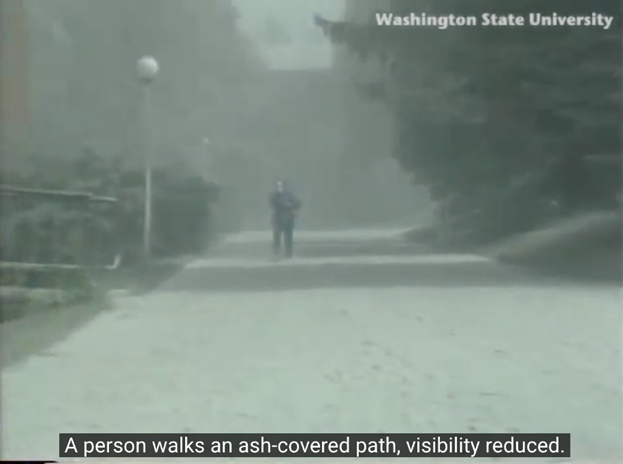
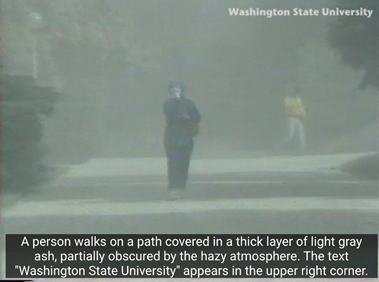
Descriptive audio is not captioning. It’s an additional audio channel describing what’s going on in the video. Audio descriptions can be created in two different formats: standard and extended.
Standard descriptive audio inserts a spoken description of what’s on screen during any pause or break in spoken dialogue. Standard audio description does not alter the duration of the video and complies with the AA accessibility standard.
Extended descriptive audio pauses the video and describes what the audience will see then plays the described portion of the video. It repeats this pattern until the video concludes, and this method extends the duration of your video. Extended audio description complies with the AAA accessibility standard.
Examples:
Send us your questions
This is a time of considerable change for web publishing, and we’re navigating the changes in real-time as well. If you have a specific inquiry or question about applying the new accessibility guidelines, send us your question at cas.news@wsu.edu, and a member of the CAS Communications staff will reach out to you.
Social Media Accessibility Checklist
Before you post
- Does this post include images, video, or links?
- If yes, have I addressed accessibility for each element below?
Events
- Every post must be understandable without seeing the image.
- Does every event post include ALL of the following in the caption:
- Date(s)
- Time(s)
- Location
- What the event is (clear description)
- Who is involved (speaker, performer, department)
Images (Posts, Carousels, Graphics)
- Alt text added (clear, specific, describes purpose – not just “image”)
- No critical text embedded in image (or it’s repeated in caption)
- Infographics are summarized in caption or linked page
- Good color contrast (text is readable for low vision users)
Video / Reels / Stories
- Captions included (accurate, not auto-generated only)
- Key visuals also explained verbally or in captions
- No important info conveyed only through visuals
- No flashing/flickering content
Caption Text
- Written in plain, clear language
- Avoids jargon or explains it briefly
- Important info is not buried or implied
Links
- Link text is descriptive (not “click here”)
- User knows where the link goes before clicking
Hashtags
- Use CamelCase (e.g., #StudentSuccess)
- Keep hashtags limited and readable (avoid long strings)
Emojis
- Used sparingly (screen readers read each one)
- Placed at end of sentence, not mid-text
Design & Formatting
- No meaning conveyed by color alone
- Fonts are legible and not overly stylized
- Layout is clean and uncluttered
Platform Features
- Platform alt text field used (Instagram, LinkedIn, etc.)
- Captions uploaded natively when possible
- Accessibility features not overridden by design choices
Common Mistakes
- Posting flyers or PDFs as images without explanation
- Relying only on auto-captions
- Using ALL CAPS or excessive punctuation
- Overloading posts with emojis or hashtags
- Posting text-heavy graphics without context
High-Risk Content
Before posting, confirm compliance for:
- Event flyers
- Infographics
- Multi-day events
- Performances with schedules
Final Check
Before posting, ask: